Splash Page Background Slider

Background (Image) Sliders give you the ability to rotate through beautiful images in the background, delivering a modern and premium feel while providing valuable space to promote what matters most.
Create a dynamic backdrop that enhances your splash page with multiple images while keeping guests engaged.
Prerequisites: You must already be in edit mode with your splash page. (See Finding and Editing Your Splash Page.)
Each slide can include:
- Eye-catching photos
- Product shots
- Lifestyle imagery
- Branded graphics
What It Looks Like on a Splash Page
A Background Image Slider (also called Background Slider) is a dynamic background that slowly rotates through a series of high-quality images behind your main splash page content (logo, headline, buttons, etc.).
Unlike a traditional image slider, the images stay in the background while your foreground elements remain fixed and prominent. It typically features subtle transitions (zoom) and works beautifully on both desktop and mobile.
How a Background Image Slider Benefits You as a Marketing Tool
- Creates a modern, premium, and immersive first impression without overwhelming your main message.
- Allows you to showcase multiple visuals (products, lifestyle shots, promotions, or brand stories) in one elegant space.
- Keeps guests visually engaged as the background gently changes, encouraging them to stay longer on the page.
- Gives you valuable real estate to communicate different marketing messages while maintaining a clean, uncluttered design.
- Enhances branding and atmosphere, making your splash page feel more dynamic and professional.
Important Caveats
Background Image Sliders are generally more elegant and less intrusive than regular image sliders. However, they can still slow down page load times if the images are not properly optimized.
Best practices for best results:
- Use 3–5 high-quality, well-compressed images.
- Keep transitions slow and subtle (avoid fast or flashy effects).
- Ensure good contrast between the background images and your text/buttons.
- Always prioritize fast loading — compressed images and lazy loading are essential.
In the context of the Multi-Step Marketing widget, the Background Image Slider (along with Background Video, Image Slider, and Interstitial Video) gives you flexible, visually rich ways to make your splash page more engaging and promotional without needing complex custom code.
Configuring the Background Slider Widget
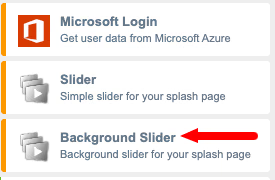
1. From the Elements panel on the left of the screen, click Splash Elements to expand this section. Scroll down to locate the Background Slider and drag it to your splash page. Hover over the widget until you see the context menu and click Edit.
2. You can add up to five images to the slider. To add an image, click Choose. If the image is already in your Media Library then click your desired image and click Select Image. You can add an (optional) caption to this image,

If the image is not in your Media Library, then click the Upload files tab and follow the instructions for adding the image to your Media Library. Once that is done, then proceed as described at the beginning of this step.
If you only have one image, use the same image for Image 1 and Image 2 to give you the zoom effect.
IMPORTANT: Do not use an image URL from another website domain, by clicking From URL, as this may cause issues with the splash page loading. If you do need to use external images, be sure to add those domains to your Walled Garden Settings on your network.
3. Transition Speed - This is the transition speed of the images expressed in milliseconds between 50 - 1000.

4. Slide Duration - This setting controls how long an image is displayed before transitioning to the next image. The duration is expressed in seconds between 1 - 10.

5. Click Publish Changes. Your newly customized splash page is now live.

Animations And Miscellaneous
ANIMATIONS and MISCELLANEOUS

Animations settings on the Background Slider Widget have no effect on your splash page.
Miscellaneous uses custom CSS styling and falls outside the scope of this knowledge base article. For guidance on advanced customization, we recommend reaching out to your design team or contacting our support team directly.
See also: