Finding and Editing Your Splash Page

In this article you will learn how to:
- List splash pages available
- Edit your splash page logo
- Change page images
Prerequisites: You need to be logged into your Fydelia account first. Click here for the how-to.
Finding Your Splash Page
1. Switch accounts - If you are a reseller managing a multi-tenanted account, each organisation shows as a new account in Fydelia. They are created automatically. To switch between them, just use the drop down.

2. Viewing your splash pages - To view and edit your splash pages choose the List Pages from the Splash Pages menu.

3. Edit - To edit your page, hover the settings "cog wheel" and click the EDIT icon.

Editing Your Logo
1. To change your logo hover over your logo until the blue context menu appears and click Edit.

2. Choose a new logo file from your computer. - Click Choose to display your Media Library. If the image is already in your Media Library then click your desired image and click Select Image.

If the image is not in your Media Library, then click the Upload files tab and follow the instructions for adding the image to your Media Library. Once that is done, then proceed as described at the beginning of this step.
IMPORTANT: Do not use an image URL from another website domain, by clicking From URL, as this may cause issues with the splash page loading. If you do need to use external images, be sure to add those domains to your Walled Garden Settings on your network.
Changing Other Images
In the next example we'll use the Background Slider widget for demonstration purposes. The concept is the same for all widgets that support having a background image such as a row, column or the page itself.
1. To change your logo hover over the Background Slider until the blue context menu appears and click Edit.

2. Click Choose to display your Media Library. If the image is already in your Media Library then click your desired image and click Select Image.

If the image is not in your Media Library, then click the Upload files tab and follow the instructions for adding the image to your Media Library. Once that is done, then proceed as described at the beginning of this step.
IMPORTANT: Do not use an image URL from another website domain, by clicking From URL, as this may cause issues with the splash page loading. If you do need to use external images, be sure to add those domains to your Walled Garden Settings on your network.
3. Once you are happy with the images, click Save Changes in the bottom left of the screen.

For a more in-depth guidance on changing images on your splash page see Splash Page Videos and Images article.
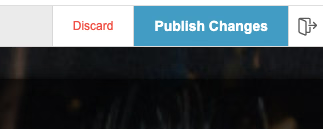
4. Now save all of your changes by clicking Publish Changes. You're all set!