Styling Widget - Form
Elevate your splash form with custom styling.
Prerequisites: You must already be in edit mode with your splash page. (See Finding and Editing Your Splash Page.)
There are three types of settings in this section and have a color border to show which it is:
• WYSWYG: You can see the effect of these changes immediately as you make adjustments. (Image will have a solid green border.)
• SAVE: You must save the changes in the Configuration Panel before you can see the effects. (Image will have a dashed orange border.)
• PUBLISH: You must publish the page in order to see the effects. (Image will have a dotted cyan border.)
A splash page FORM is the border and the area inside the border.
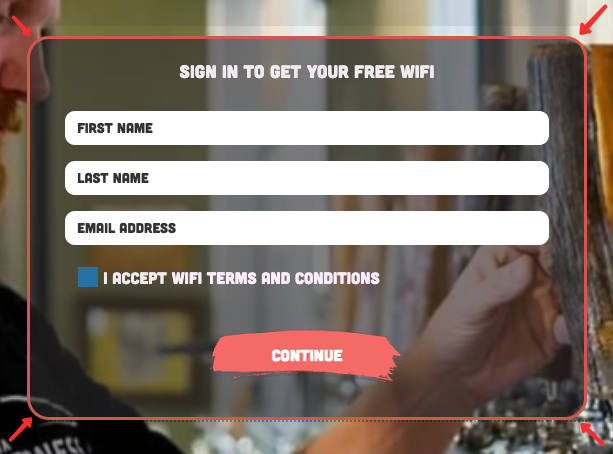
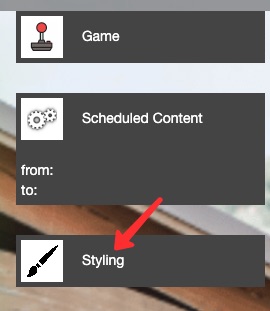
1. Hover over the widget until you see the blue Edit button appear in the upper lefthand corner of the widget and click it. The Styling configuration panel will appear.
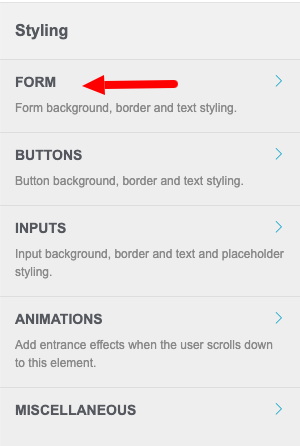
2. Click FORM to expand the section.
3. Form Background Color - This setting allows you to change the default background color.
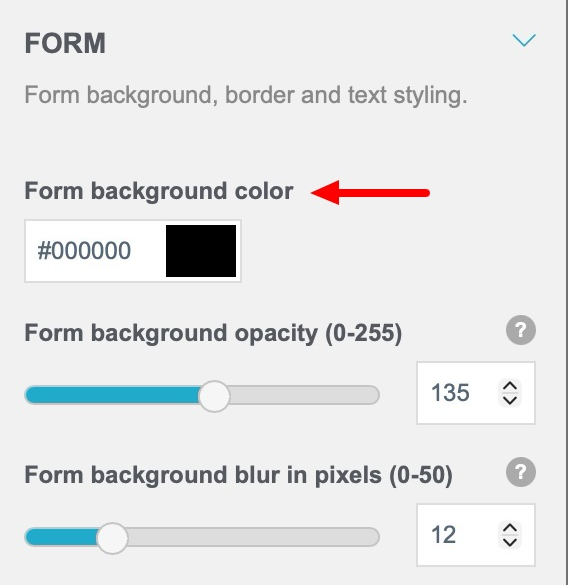
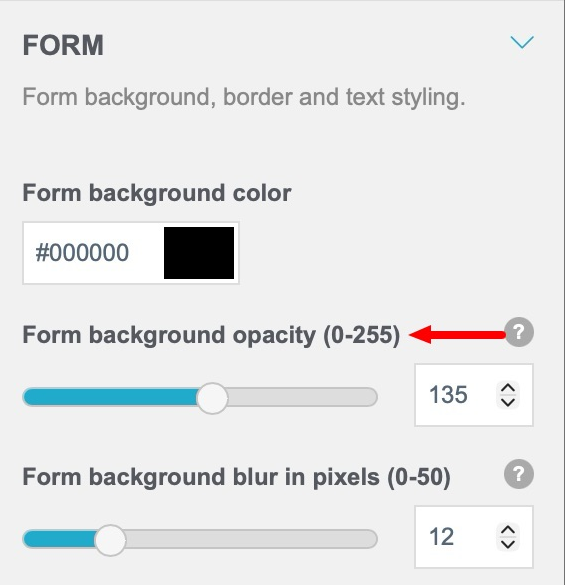
4. Form Background Opacity - This setting allows you to change the default background opacity.
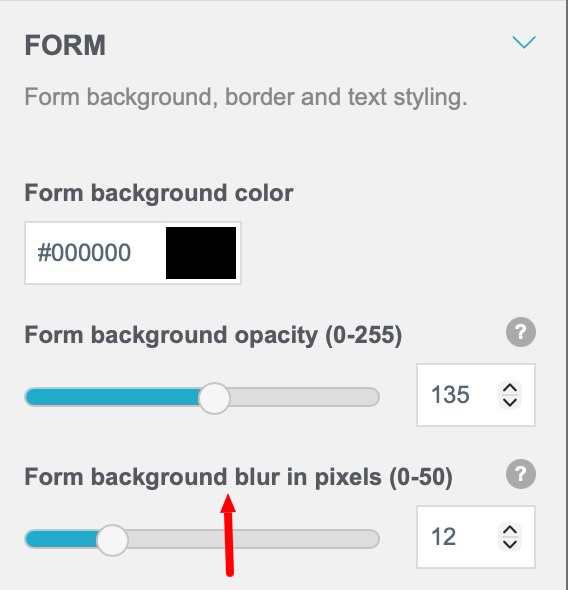
5. Form Background Blur In Pixels - This setting allows you to change the blur to the portion of the image covered by the form. Enter a number or used the Up or Down arrows to change the value.
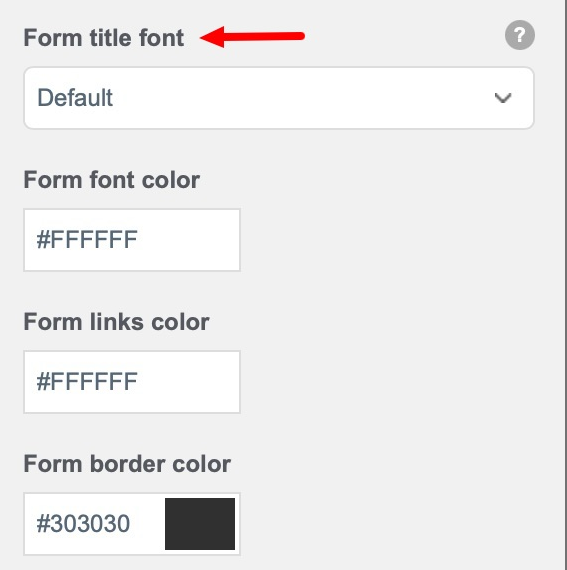
6. Form Title Font - This setting allows you to use one of three custom fonts for the title of your form. If none is chosen, the default font will be used.
To use a custom font, you first need to load it onto your splash page. For step-by-step instructions, refer to Custom Fonts.
7. Form Font Color - This setting allows you to change the color of the form Title Font and the "I accept" caption to the right of the Terms checkbox.
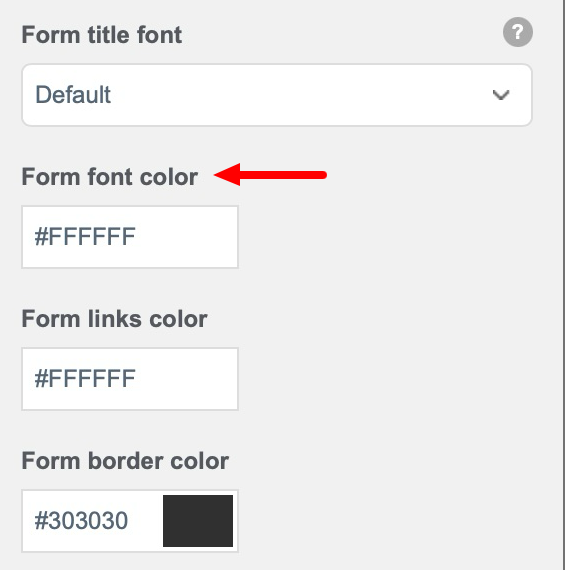
Click inside the field to display the color pallete .
8. Form Links Color - This setting allows you to change the color of the link on your form; specifically, "WiFi Terms and Conditions" label.
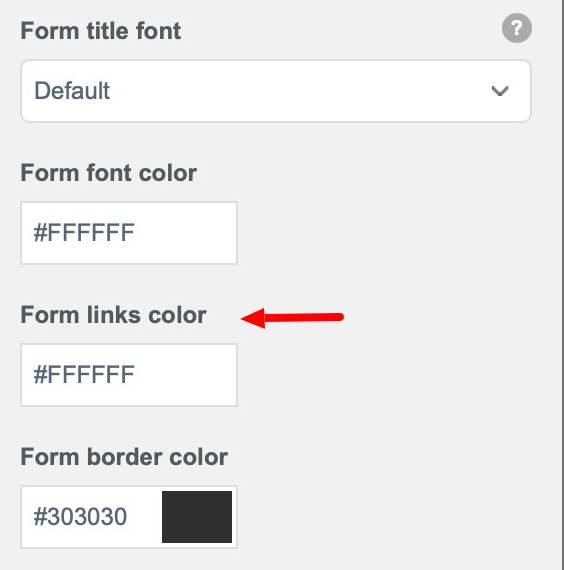
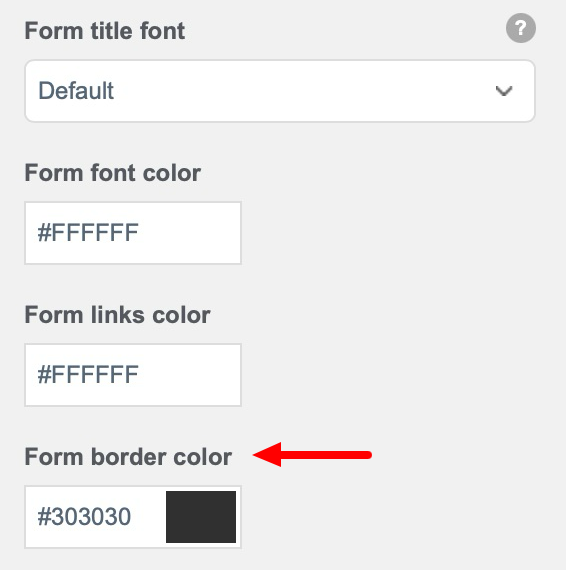
9. Form Border Color - This setting allows you to change the color of the form border.
10. Form Border Size - This setting allows you to change the size of the form border.
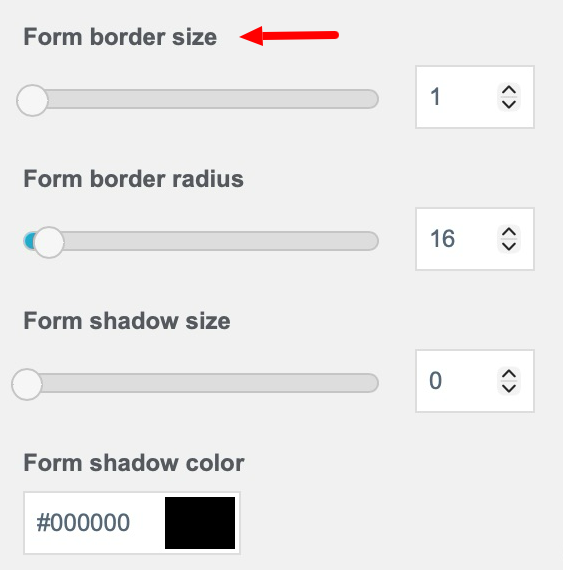
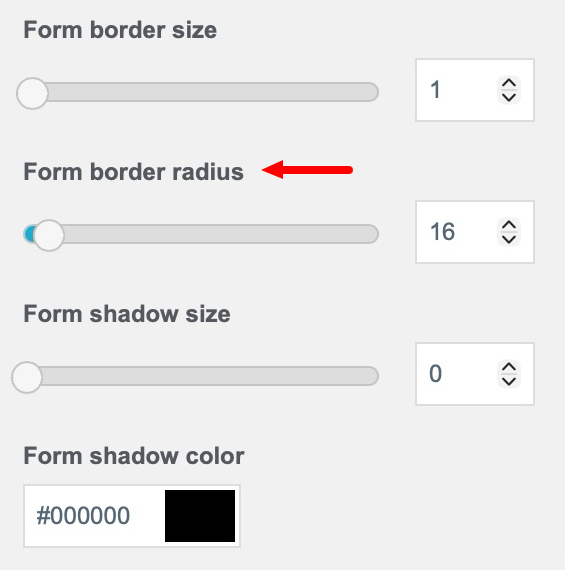
11. Form Border Radius - This setting allows you to change the shape of the form border corners in pixels.
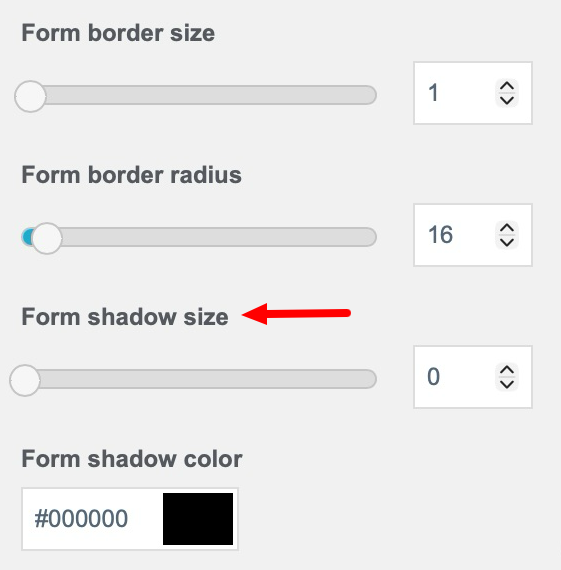
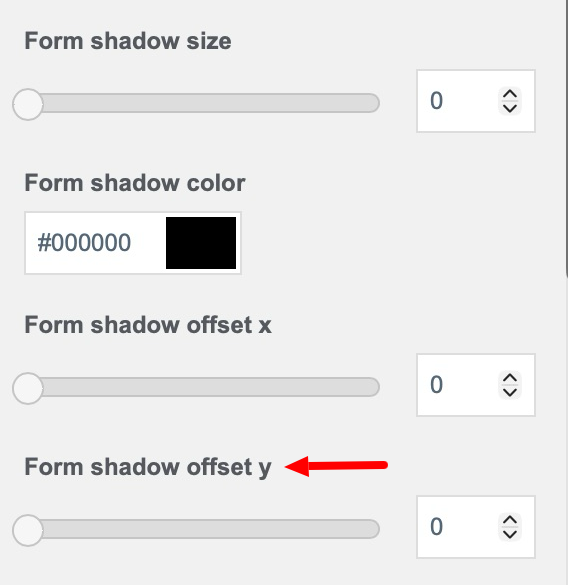
12. Form Shadow Size - This setting allows you put a shadow around your form.
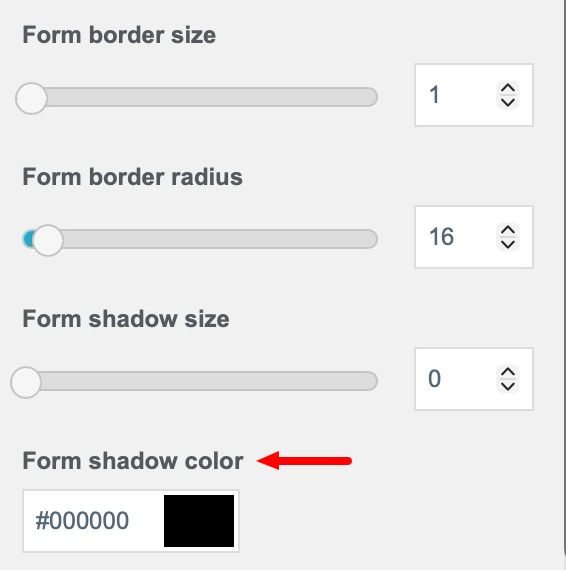
13. Form Shadow Color - This setting allows you change the color of the shadow around your form.
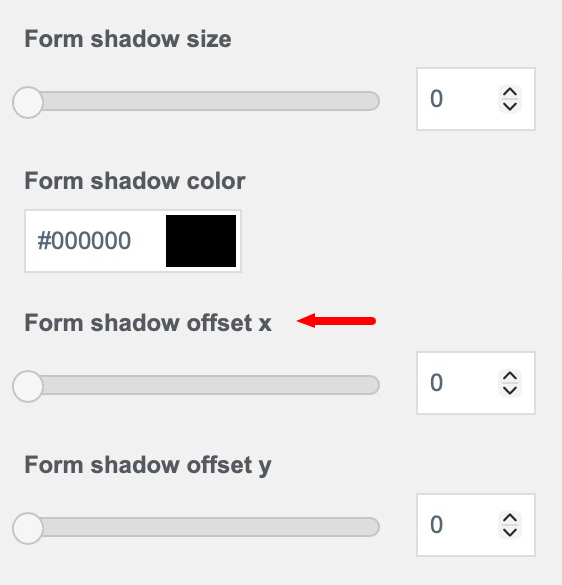
14. Form Shadow Offset X - This setting allows you to shift the shadow around your form to the right.
15. Form Shadow Offset X - This setting allows you to shift the shadow around your form down.
See also: