Ruckus Unleashed External Captive Portal setup
Ruckus Unleashed is designed for smaller deployments and is known for its simplicity. It's easier to set up and manage compared to larger-scale solutions like SmartZone. In this article we will set up an external captive portal on an existing Fydelia Guest WLAN:
Splash page portal settings
Choose Hotspot services

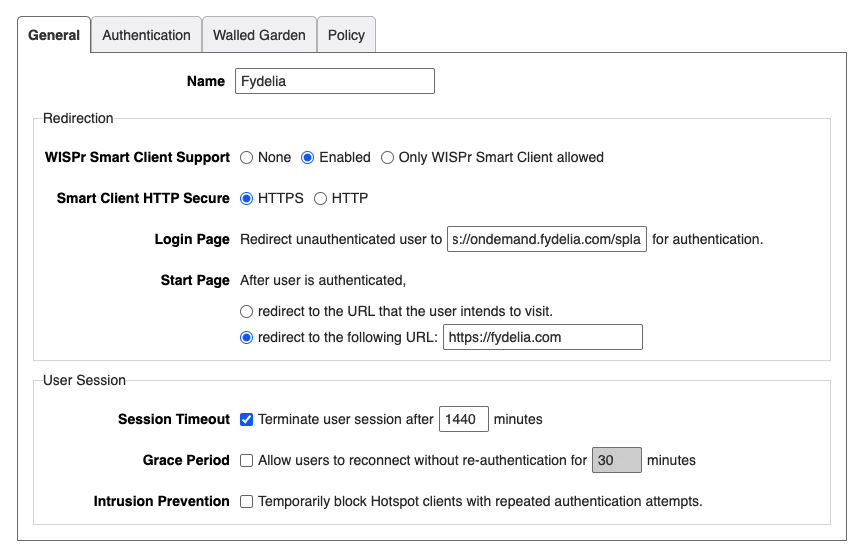
Fill in the details as follows:
- WISPr Smart Client Support: Enabled
- Smart Client HTTP Secure: HTTPS
- Login Page: Your Splash URL
- Start Page: Your desired post-login landing page
- Session timeout: Usually set to one day (1440 minues)
In the AUTHENTICATION tab make sure Local Database is chosen:

In the WALLED GARDEN tab add the splash page domain, typically "ondemand.fydelia.com":

Adding a Fydelia local user
In the System area click ROLES:

Click create new and enter these details:

Click OK to create the role.
In System click Users:

Click CREATE
Enter the desired username and password that you have used on your Ruckus form settings on your splash page:

Click OK to save the user
Click OK to go back to the main dashboard
Enable the hotspot
When creating your guest WLAN choose "Hotspot Service":

Choose the hotspot service you created:

Save your settings
You're all set! Guests can now authenticate via Ruckus Unleashed